Lesson 1
Overview
Day to day work for astronomers and developers is hard to imagine without the use of terminals to navigate through file systems, run programs, and get access to supercomputers.
Knowing how to use Bourne Again SHell (BASH) commands and write basic scripts is an essential skill. In this course, we will cover the basics of working with BASH such as navigating through directories to slightly more advanced topics such as writing scripts.
However, as this is a topic with very broad applications this is only scratching the surface so a collection of materials for further reading is included at the end of the course.
Each module in the course will come with its own webinar explaining its specific contents with examples. Everything covered in the webinar is then written up for your reference in the subsequent lessons.
Course lessons
Bash Basics
Bash Basics is all about getting started. We will betalking about where and how to acess your teminal, how to navigate and edit files/directories as well as the most common commands and special keys you will need to know.
Lesson 2
Bash Commands and Keywords
The building blocks that make-up Bash scrips are Commands, keywords, keys and special characters.
Commands to navigate through file systems you may have very likely seen before. Many commands have options associated with them. You can access these options via�-option_name.
-
-
- ls -a List all files and folders
- ls <foldername> List files in a folder
- ls -lh Detailed list with a human-readable output
- ls -l *.jpg List only jpeg files
- ls -lh <fileName> Result for only a single file
- cd <foldername> Change directory - If the folder name has spaces, use quotes. Example: cd "Folder With Spaces"
- cd .. Go up one folder.
- du -h Disk usage of folders in a human-readable output
- du -ah Disk usage of files and folders in a human-readable output
- du -sh Only show disk usage of folders
- pwd Print the working directory
- man <command> Shows the manual for a command or program
-
-
-
- ~ Points to the home directory
- # Insert a comment
- & Run as a background job
- ' Strong Quote
- " Weak quote
-
complete -A keyword : followed by� : Space Tab Tab to get a list of all the shell keywords.
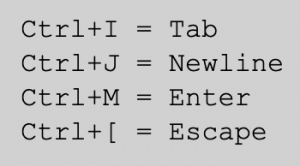
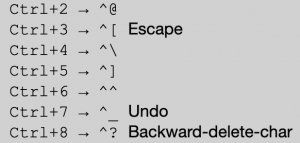
Finally, terminals send characters (bytes), not keystrokes. Special keys such as Tab, Backspace, Enter and Esc are encoded as control characters.
Control characters are not printable, they display in the terminal as ^ and are intended to have an effect on applications.
Lesson 3
Basic file manipulation and the rm command
Moving on from the first lesson on commands there is a whole host of them dedicated to manipulating files. It is possible to navigate your computer and interact with any files stored on it without ever leaving our terminal window.

- creating/editing
-
- mkdir <foldername> Create a new folder
- touch <filename> Create or update a file
-
- moving/renaming
-
- mv file.txt documents/ Move a file to a folder
- mv <folderName> <foldername2> Move a folder into a folder
- mv filename.txt filename2.txt Rename a file
- mv <foldername>/.. Move a folder up in the hierarchy
-
- copying
-
- cp image.jpg newimage.jpg Copy and rename a file
- cp image.jpg <foldername>/ Copy to a folder
- cp -R folder1/ folder2/ Recursively (-R) copies folder1 and all of its contents into folder2.
-
- rm <filename>�removes files only
- rmdir <foldername>�removes folders
- use�-r (recursive option) to delete all files and subfolders
Never use rm/rmdir -r * !!
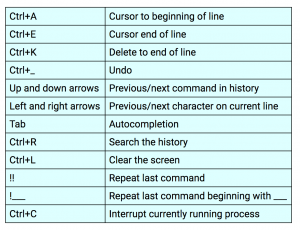
Finally, these shortcuts will help you navigate your command line while typing.
Bash basics 2
In bash basics 2 we discuss customizing your terminal for your individual needs. This can mean putting in shortcuts to projects or changing the coloursheme to be more easy on the eyes.
Lesson 4
Bash Basics 2 Webinar
Lesson 5
Editing your Bash Profile
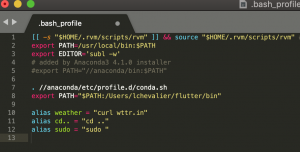
To �permanently� apply changes to your terminals functionality/appearance you will need to access the .bashrc and .bash_profile files. The contents of .bash_profile will get run for login shells (starting your terminal or sting to a new server).
It is possible to set custom colours/backgrounds as well as aliases and prompts. For non-login shells use .bashrc. If you are requiring the same setup for both of these you can set up your basic to defer to your bash profile settings or vice versa.
To edit the .bash_profile you will need writing permission so you may need to use sudo. After completing your edits run�source ~/.bash_profile for the changes to take effect.
Setting Aliases
Aliases are shortcuts set to optimize repetitive commands, add shortcuts or safety nets. Setting aliases is a simple process. Once in your bash profile in a new line add�alias aliasname='command you want to alias'.
Lesson 6
Curated list of favorite aliases
Here a short list of of common aliases from the ADACS group:
# Common Spelling mistakes
alias cd..="cd .."
alias cdd="cd"
alias cdc="cd"
# Supercomputers
alias pm="ps aux | grep username"
alias gstar="ssh -X username@g2.hpc.swin.edu.au"
alias ozstar="ssh -Y username@ozstar.swin.edu.au"
alias pawsey="ssh -Y username@magnus.pawsey.org.au"
# Make some of the file manipulation programs verbose
alias mv="mv -v"
alias rm="rm -vi"
alias cp="cp -v"
# Other
alias rmbak="rm -f *~"
alias ls="ls --color"
alias c="/usr/bin/clear"
alias sudo="sudo "
alias reload='source .bash_profile'
alias update='brew update && brew upgrade --all && brew cask update && brew cleanup && brew cask cleanup'
alias weather="curl wttr.in"
Bash Basics 3
Moving on from navigating files systems Bash basics 3 focuses on writing scrips. This module will teach you how to define variables read user input as well as write functions and loops.
Lesson 7
Bash Basics 3 Webinar
Lesson 8
Setting up and Running Bash scripts
Everything we have covered so far relates to using a shell interactively i.e typing in one command at a time and getting an immediate response. Just about anything you can interactively do in a shell can be put into a script to be executed. This is useful for stringing together numerous commands and creating easy repeatability.
Shell script files are denoted with the .sh extension. Creating a new script file is as easy as touch <filename>.sh�or creating it in your editor of choice. Next, you want to make it executable by using chmod +x <filename>.sh.
There is a convention that the first line of your shell script should be #! /bin/bash or similar. The shebang command will tell the shell what kind of interpreter to run. While not necessary it is good practice.
There are multiple options for executing the script:
-
-
- ./<filename>.sh � most commonly used
- source <filename>.sh
- /bin/bash <filename>.sh
- bash <filename>.sh � assuming /bin is in your $PATH
- sh <filename>.sh
-
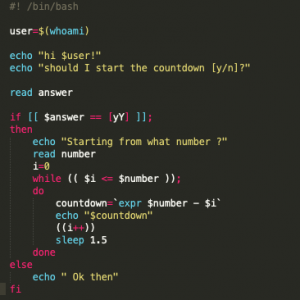 image: example of a simple script
Lesson 9
Variables and user Input
You now know how to execute a shell script but what about the content of the script. In bash, variables are character strings if the value of a variable only contains digits it permits arithmetic operations. There are also a number of rules regarding hard and soft quotes and where spaces can be placed. For example, there cannot be any spaces around the '=' operator when defining variables. Still for the most part creating a variable is as easy as providing it with a name and value, bash does not segregate its variables by type. To query the value of your variable at a later point use $<variable_name>.�
As with any script you should absolutely comment your code!!!! To add a single comment use #.
To print to your terminal at any given point use�echo [option(s)] [string].
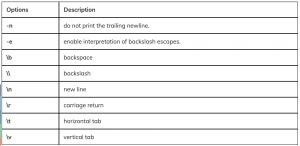
image: list of echo options taken from O'Reilly
It can be very useful to define variables after the program has been set in motion. For example, a short script to pull a number of random samples from a larger dataset could benefit from setting the number of samples or the random key without having to edit the script every time. Or setting the name of your output file as the script completes. For these examples, you could use user input. When using the read <varaible> command in your script the user will be prompted to enter some input.Lesson 10
Functions loops and conditionals
Functions:
Initialize function via function_name (){} or function function_name { commands; } then use $1, $2, $3 etc. to access the arguments inside the function.
Loops and conditionals:
Loops will rerun a set of commands until a particular situation is reached. If statements decide whether or not to run a piece of code based on set conditions. Combine loops and if statements for more complex scrips solving larger tasks
For Loop:
- the for loop executes a set of commands for each item in a given list
for var in <list> do <commands> done
While Loop:
- while expression evaluates as true a while loop will continue to execute
while [<some tests>] do <commands> done
Until Loop:
- commands will be executed until statement evaluates as true
until [<some tests>] do <commands> done