A Beginners Guide to OzSTAR

Published

All levels 5 lessons Basic Computing Skills Clusters Course

Many students have found it challenging to determine exactly what they need to do when they want to turn a program they have written into a job to OzSTAR. This tutorial aims to resolve this issue by giving detailed instructions so by the end, even co

Legacy learning resource image 5025

Overview

Many students have found it challenging to determine exactly what they need to do when they want to turn a program they have written into a job to OzSTAR. This tutorial aims to resolve this issue by giving detailed instructions so by the end, even complete OzSTAR beginners should understand how to write and submit their own jobs. This tutorial for submitting jobs is primarily aimed at people who will be using the OzSTAR supercomputer located at Swinburne. So keep in mind that some of this tutorial may not be applicable to all systems that are using a Slurm based job scheduler. This tutorial is based on the OzSTAR/Slurm documentation found here.   PREREQUISITE: you need to have an OzSTAR account which you can request here.

Course lessons

Introduction to OzSTAR

Lesson 1

Accessing OzStar

1.Logging in

Of the 107 login nodes two are used as standard login nodes and these are named farnakle 1/2. These two nodes are the default login connection when you connect from your local machine11 :

ssh -X -Y -t -C <your_username>@ozstar.swin.edu.au

where

- X : enables X11 forwarding which helps with displaying images through the ssh connection. MUST BE CAPITALISED as lowercase - x� option actually disables X11 forwarding

- Y : enables trusted X11 forwarding

- t : forces pseudo-tty allocation. This is very useful for using any additional screen-based programs such as launching a script through a screen session.

- C : compresses data packets


The default login hard disk space will be in your HOME directory (/home/<your_username>). This directory is one of the two types of locations available to you.�It is the default location for your .bashrc� hidden bash configuration file.

THIS IS THE ONLY BACKED UP DIRECTORY.

You will be required to enter your password every time you connect. If you want to set up an automated login follow this Link for helpful instructions. 2. Aliases and functions

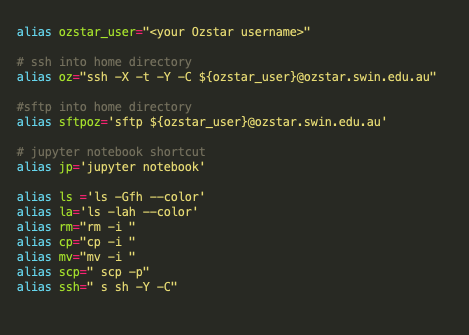
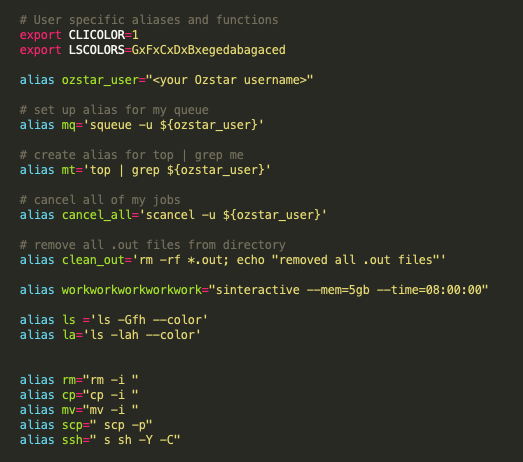
There are a number of useful changes we recommend you implement in your .bash_profile/.bashrc in both your local machine and for your remote Ozstar environment.


2.1 For your local machine


2.2 For your remote OzStar environment

Lesson 2

Writing and Submitting a Job on OzStar

Submitting a job on OzSTAR is a two step process: 1) First you have to request resources from OzSTAR. This will normally include the amount of memory you need, the number of CPUs you want to use and how long you expect to be using the resources. This step is called a ��resource request�. An example resource request using english could be: "I want to use 200 MB of memory on 1 CPU core for 2 hours".2) The second step is where you say what you want these resources to be doing. This includes specifying what software is needed, which scripts you want to run, and how to execute them. This step is called the �job step�. An example job step could be: "I want to load python and then execute a python script".Luckily, you can do both of these steps at the same time using a �submission script�.

Writing a Job Submission Script

A submission script is just a shell script that is formatted in a specific way such that it contains both your resource request and your job step. Here is an example of a simple submission script called�my_slurm_job.sh. This submission script will run a python script called�example_python_job.py.
#!/bin/bash

#SBATCH --ntasks=1
#SBATCH --mem=100MB
#SBATCH --time=00:30:00

module purge
module load anaconda3/5.0.1

source activate py3

python example_python_job.py
There are four main components to a submission script:�The Shebang,�#SBATCH,�Loading Modules�and�The Job Step.

1 The Shebang

#!/bin/bash 
The first component is the very first line:�#!/bin/bash. This line has many names including: �shebang�, �shabang�, �hashbang�, �pound-bang�, �hash-pling� and probably lots of other ridiculous sounding names. This line serves the purpose of defining which �interpreter� to use when executing the script. In this case we are effectively saying: �This is a bash (Bourne-Again Shell) script, so execute this script with a bash shell�. Since all of your submission scripts will be likely be a bash script, this line will be the same for every submission script you write.

2 #SBATCH

#SBATCH --ntasks=1
#SBATCH --mem=100MB
#SBATCH --time=00:30:00
The second component is where you request resources and it includes all the lines that start with�#SBATCH. Any line in your submission script that begins with�#SBATCH�is understood by Slurm to be a resource request or an additional option related to the job.
Note

Notice the # in front. This can be easy to forget but is important.

In this example script we are requesting: 1 CPU (#SBATCH --ntasks=1) and 100 MB of RAM (#SBATCH --mem=100MB) for 30 minutes (#SBATCH --time=00:30:00). Similarly if you wanted request 2 GB of RAM on a single CPU for 12 hours your resource request would look like this: Example
#SBATCH --ntasks=1
#SBATCH --mem=2GB
#SBATCH --time=12:00:00
There are lots of additional options that you include here, for instance you can include the option to have SLURM send you an email when your job starts and ends. Example:
#SBATCH --mail-user=name@swin.edu.au
#SBATCH --mail-type=ALL
You can see a complete list of parameters using�man sbatch. I have also listed more examples of options that may be useful at the end of this tutorial.
Note

A good rule of thumb is: The more resources you request, the longer it will take for your job to start.

This means that asking for way more time and RAM than you actually need is not a good idea. Unfortunately, this tutorial can not tell you how much resources your job will require. You will have have to determine that for yourself. If you are using python, you can look into using packages such as�memory_profiler�and�line_profiler�to help estimate the memory usage and timing of a script.

3 Loading Modules

module purge
module load anaconda3/5.0.1

source activate py3
The third component is where you load all the modules that are necessary to run your script. OzSTAR uses modules to manage the software it has installed. If you want to use a module you first have to load it. To load a module use the following command:�module load <module_name>/<software_version>. You can search for modules using�module spider <module_name>. We will be executing a python script using the example submission script, hence we have to load the modules for anaconda and the Conda environment that all the packages are install in.
  • module purge�unloads all loaded modules.
  • module load anaconda3/5.0.1�loads Anaconda. I recommend using the�anaconda3/5.0.1�version of instead of�anaconda3/5.1.0�because there is a significant bug in the later version on OzSTAR related to Conda environments.
  • source activate py3�loads a Conda environment that I have called�py3. In this environment I have installed all of the necessary packages required to execute�example_python_job.py.
Here is a list of a few common modules that you might need to load:�gcc/7.3.0,�hdf5/1.10.1,�openmpi/3.0.0.
Tip

Loading modules is not necessary if they are already loaded in your session. You can load modules in the�.bashrc�file in your home directory the same way you would load them in a bash script. If you load modules in your�.bashrc�those modules will automatically get loaded into your environment every time you log into Ozstar. This means you only have to write�load module anaconda3/5.0.1�once in your�.bashrc�and then forget about it.

Tip

If you are using python I highly recommend that you use Conda environments when working on OzSTAR. Anaconda environments will save you lots of time, stress and effort in the long run.

4 Job Step

python example_python_job.py
This final component is where you say what you want to actually run on the requested resources. This is the job step. In the example, we have a single line�python example_python_job.py�indicating that our job will run the�example_python_job.py�script. It is also possible to list multiple job steps in a submission script and they will be performed one after another. Example:
python example_python_job.py
python example_python_job2.py
python_example_python_job3.py
In this case, after the first job step is completed the second job step (example_python_job2.py) will begin. In your resource request you will have to allow for the time and memory requirements for all of the job steps.

Submitting a Job Submission Script

After you have finished writing a submission script, you can submit it to Slurm with the�sbatch�command.
>>> sbatch my_slurm_job.sh
sbatch: Submitted batch job 99999999
If the job is successfully submitted, it will respond with the�jobid�that was assigned to the job. In this example the�jobid�is 99999999.
Note

You can also submit a job to the queue from within a submission script. This can be useful for automating a pipeline of scripts that need to be completed in a sequence.

You can find more documentaion related to the�sbatch�command on the official Slurm website�here.

Lesson 3

Query and Cancel Jobs

Querying the State of a Job

You can find out about the state of your job and all other jobs in the queue using the command�squeue.
>>> squeue --user=yourusername
This will give you the status of all your running and submitted jobs. You can also neglect the�--user=yourusername�to view the entire job queue for all users. If you are using OzSTAR then the output of�squeue --user=yourusername�should look similar to the figure below. "An image of the output of squeue after using sbatch on my_slurm_job.sh" The columns of the output are as follows:
  • JOBID: The JOBID that is given to the job. This ID is unique amongst all jobs past, present and future.
  • PARTITION: The type of �queue� that the job is in. This is usually given by the name of the type of CPU that will be running the job.
  • NAME: The name of the job.
  • USER: The username of the person that submitted the job.
  • ST: The status of the job.
    • R: Currently Running
    • PD: Waiting for Resources (Pending)
  • TIME: The length of time the job has been running. If the job is pending (ST = PD) it will say�0:00.
  • NODES: The number of �nodes� that the job has requested. A �node� is a collection of many CPUs. OzSTAR has a few different types of nodes with different amounts of CPUs on each. For example the�john�(PARTITION = skylake) nodes have 32 CPUs each.
  • NODELIST(REASON): If the job is currently running (ST = R) this is the list of nodes that the job is using. If the job is pending (ST = PD) this is why the job is pending.
You can also use the�OzSTAR Job Monitor Website�for a graphical view of all the jobs that are running and in the queue.

Canceling a Job

Sometimes you will have a job that you need to cancel for some reason. You can cancel a running or submitted job at any time with�scancel jobid.
>>> scancel 99999999
You can also cancel all of your jobs with�scancel --user=yourusername�or you can only cancel your �Pending� jobs with�scancel -t PD.

Examples

Example 0

#!/bin/bash

#SBATCH --ntasks=1
#SBATCH --mem=100MB
#SBATCH --time=00:30:00

module purge
module load anaconda3/5.0.1

source activate py3

python example_python_job.py
This is the same example as shown throughout this tutorial.

Example 1

#!/bin/bash

#SBATCH --ntasks=1
#SBATCH --mem=100MB
#SBATCH --time=00:30:00

#SBATCH --job-name=Calculate_Mean
#SBATCH --output=slurm_output.txt

#SBATCH --mail-user=name@swin.edu.au
#SBATCH --mail-type=ALL
#SBATCH --account=oz999

module purge
module load anaconda3/5.0.1

source activate py3

python example_python_job.py
This is essentially the same as�Example 0�but with a few additional parameters.
  • --job-name�is being used to give a more meaningful name to the job. This is the name that will show up as�NAME�when using�squeue.
  • --output�is defining the file that all of the Slurm output (i.e. print statements) will be directed.
  • --mail-user�and�--main-type�makes Slurm send an email when your job starts and completes.
  • --account�is setting which group account this job belongs is associated with.

Summary

This tutorial is not meant as a comprehensive article covering all there is to know about using Slurm. Still, hopefully, by now you feel confident enough to be able to write your own bash scripts and get jobs running on OzSTAR.

Workflow

Lesson 4

Workflow

Working with remote compute resources introduces an additional layer of complexity that must be integrated into a fluid workflow. There are several options which can help with this, each with their own benefits and

drawbacks:

1. use an editor hosted on the remote machine (VIM/EMACS):

(a) Benefits: very lightweight and it's always there, at least on the OzStar/CIT clusters and on most Unix distributions. Can be easily customised, there are many helpful YouTube�tutorials and provides a keyboard-only workflow that can provide a very fast way to interact with a codebase.

(b) Drawbacks: there are not many drawbacks resulting from the actual use itself but current IDE�workflows provide additional functionality such as syncing local+remote code, version control and additional debug and code exploration tools.


2. use a contemporary IDE: PyCharm:

(a) Benefits: A contemporary IDE provides several key functional features that make it a great option for working with remote codebases. Some of these features are;

  • Continous code synchronizations
  • Version Control Management
  • Remote interpreter/s
  • Code navigation
  • Integrated Debug and Prole features

(b) Drawbacks: Unlike a built-in lightweight editor, this has to be downloaded and properly setup before getting the above benefits. Some of the features are only available in the Professional version of PyCharm and may not be available in some other IDEs such as VsCode. Luckily, any .edu email holder qualifies for a free Professional version of PyCharm. Additionally, I'd recommend a minimum of 8gb of RAM for the machine hosting the distribution.


3. use a local text editor paired with an RSYNC or SCP custom pipeline:

(a) Benefits: you can continue to use your preferred editor such as Sublime or Textmate. These tend to be more lightweight and can easily run on machines with 4gb of RAM or even less. They often provide some code navigation aids and can integrate with version control subsystems.

(b) Drawbacks: they do not allow the use of remote interpreters and do not have advanced debug and/or profiler options. Additionally, the code syncing can be an issue if not properly monitored. In general, the additional general supervision required is generally offset by the initial time investment in just setting up an IDE rather than choosing this option.


Whichever option describes your workflow, there is no absolute right or wrong way but this document will focus on how to set-up a professional version of PyCharm to work with OzStar cluster resources

Lesson 5

Connect local PyCharm distribution to OzStar cluster

There will be slight differences whether you are starting your first or already have an existing PyCharm project that you wish to connect to a remote interpreter. If this your first PyCharm project, I would recommend using the local interpreter when starting the project and then setting up the remote interpreter following the steps below.

To connect a remote interpreter to your local Pycharm distribution:

  1. open PyCharm\Preferences
  2. expand Project:� -- section
  3. select Project Interpreter
  4. click the wheel icon of the Project Interpreter tab
  5. select Add ...
  6. click SSH Interpreter from the new Add Python Interpreter window spawned by the previous action
  7. Start a New server configuration with:
    • Host: ozstar.swin.edu.au
    • Port: 22
    • Username: your username
  8. click Next
  9. If you have not set up a private key for OzStar�then enter your Password and ensure that the Save password box is clicked.
  10. click OK
  11. select your python executable. If you are using the system python2.7 version then the executable is: /apps/skylake/software/compiler/gcc/6.4.0/python/2.7.14/bin/python
    • MAKE SURE YOU NAVIGATE AND CLICK ON THE EXECUTABLE RATHER THAN JUST COPYING AND PASTING THE ABOVE.
  12. click OK
  13. you should now be back in the original Preferences window where a new Path Mappings section is visible. Click on the folder icon and navigate to the remote location where you would like your documents to be placed. I would not recommend using your home folder.