A Beginners Guide to Flutter

Published

All levels 10 lessons Basic Computing Skills Workshop materials Course

This course will provide an introduction to app development using Flutter. You will learn why you should consider using Flutter for making your own app and the advantages it can bring as well as more focused lessons on key principles such as setting

Overview

This course will provide an introduction to app development using Flutter. You will learn why you should consider using Flutter for making your own app and the advantages it can bring as well as more focused lessons on key principles such as setting states, loading assets and how futures work. After completing the materials and exercises you should have a good understanding of flutter basics and are able to write your own application.

Course lessons

Getting Started

Everything you need to know from setting up your first flutter application to running a simple hello world program

Lesson 1

The What and Why of Flutter

Flutter is a complete Software Development Kit (SDK), which uses Dart as its main language. Originally developed by Google it is used for cross and multiplatform applications and prides itself on being easily comprehensible to both designers and developers letting you create great-looking apps. Flutter has a lot of built-in functionality ready to "plug and play" and also has a wide community that creates and maintains a large number of extra packages that for example let you access a device's accelerometer or location. Also, their documentation and learning materials are excellent !! It is widely used (sites like Alibaba etc.)� and has guaranteed to have long-term support by Google.

Some things you should know

Dart is a strongly typed language i.e you have to define variable types when you create them. Alternatively, you can leave them in as var but this can and will cause issues. While it is not strictly necessary having a basic understanding of Object Oriented Principles (OOP) is a great help and will mean that you are going to pick up Dart quickly. If you are unfamiliar with OOP it is worth having a read of this brief guide that introduces you to the core concepts such as inheritance and encapsulation.

Installation and Setup

We did mention that their documentation is first-rate! So for installing and setting up Flutter on your own machine follow their installation guide. Though here are a few things that we had to troubleshoot during the installation/setup phase:
  • coco-pops not installing properly
    • this was fixed by reinstalling both ruby and coco pops through homebrew (mac os)
  • Setting up an ios emulator
    • the problem was that we could just not start it through Android Studio and instead had to go through Xcode. While that worked it will not let you run an emulator without you registering a physical device first. It also has to be a fairly recent one as something like an old iPhone 3 will be rejected by the up-to-date version of Xcode.
  • Packages and null awareness
    • null awareness was introduced partway through the project but not all packages that we utilized had been updated yet. The workaround is adding an augmentation to the run command to ignore null safety for those packages (we know this was not ideal but the best we could do at the time).
All about widgets

In short they make up just about everything in a flutter app...!

Lesson 2

Widget Basics

What's a widget?

Flutter provides a vast number of building blocks or blueprints you can use to build your UI. Those parts we refer to as widgets. Widgets include information about how they are to appear in the UI. Examples of some commonly used widgets are: rows, columns, padding, and text. Technically, even your whole app classes as a widget. Widgets are arranged in a parent-child tree structure. And while there are wast amounts of prebuild widgets in existence already you can easily write your own from scratch or extend existing ones. It really appears that most things in Flutter are classes as widgets, however, an important note is that a widget never does any computation but instead delegates it to other objects. Meaning that for example, a widget describing a box will delegate the rendering of said box to a render object. There is nothing physically stopping you to not use Widgets and write your app using direct render objects etc., but sticking to widgets has the advantage that it makes your code more accessible, modular, and maintainable. For a more in-depth introduction to widgets check out the Flutter guide.

Lesson 3

Stateful vs. Stateless Widgets

We divide widgets into two categories Stateless and Stateful widgets.

Stateless Widgets

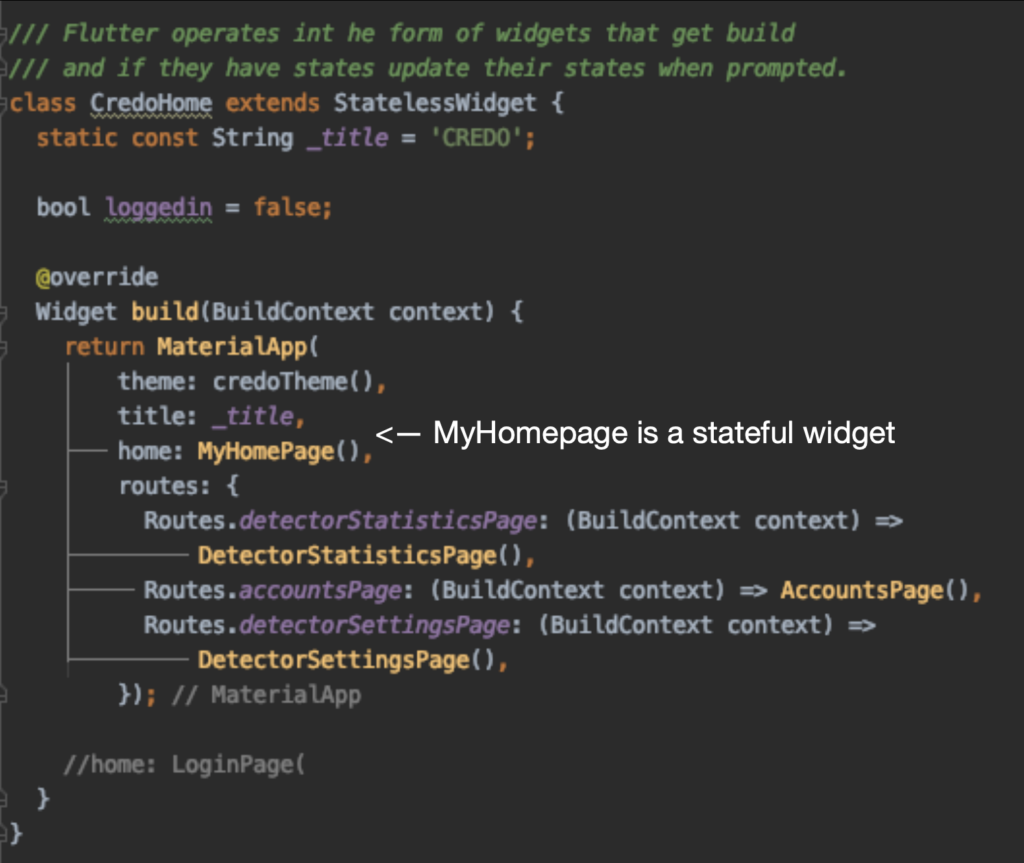
Stateless widgets are static in nature and store no values that might change. They are sometimes also referred to as "Dataless" widgets. Once a stateless widget has been initiated/build it is immutable. No change to any values, events can call it again and update/rebuild it. Examples of stateless widgets include icons and text. [caption id="attachment_5244" align="aligncenter" width="800"]Code example of a stateless widget Code example of a stateless widget taken from the effort on CREDO[/caption]  
Stateful Widgets

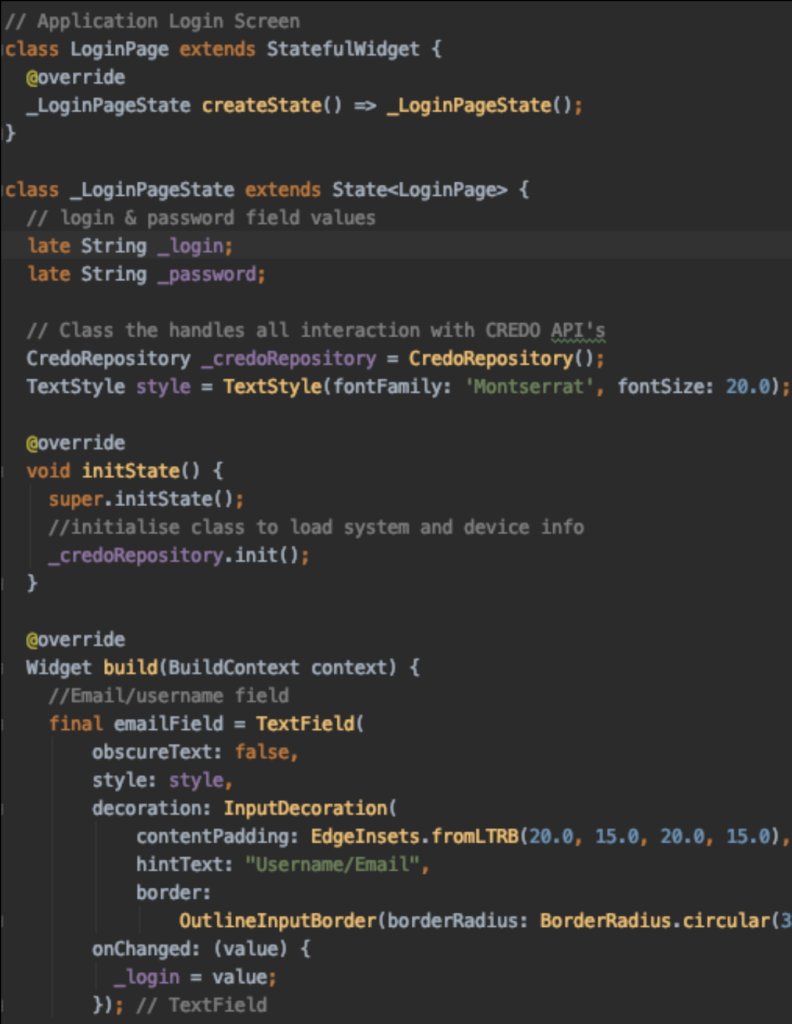
On the other hand we have stateful widgets that are dynamic in nature. They track changes and update accordingly. These are widgets that allow for user interaction such as textfields, radiobuttons, sliders and textboxes. Stateful widgets come as a two part process. The first part is initializing it similar how a stateless widget is made but does contain createState( ). The second part is initiating the actual state i.e the things that do change. Below is an example of the login page mockup from our work on the CREDO project.  

Updating States

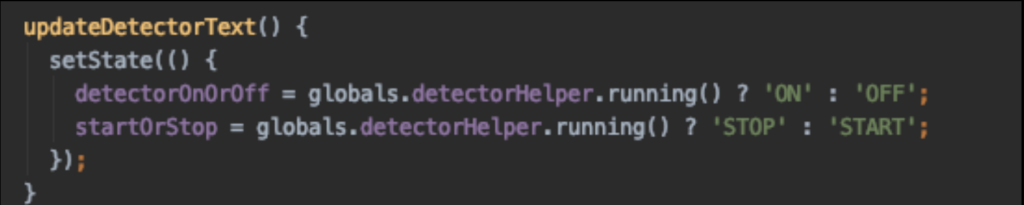
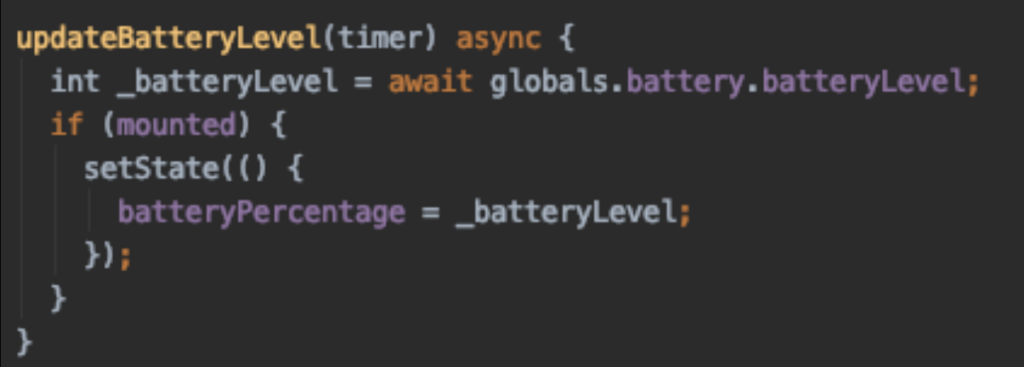
As we change State Object we have to notify the framework of those changes. We use the setState() method to track the internal state of an object and notify the framework of any changes. The Framework will then schedule a rebuild of that widget and any of its children, so that any changes are reflected to the user.   In the two examples below you can see setState() in action. The first image shows you how we used it to update text to reflect whether a detector is running or not. The second reports on the battery percentage. It is best practice to keep any computation that goes into the changing of state out of setState and only include the actual changes.

Lesson 4

Lets talk layouts

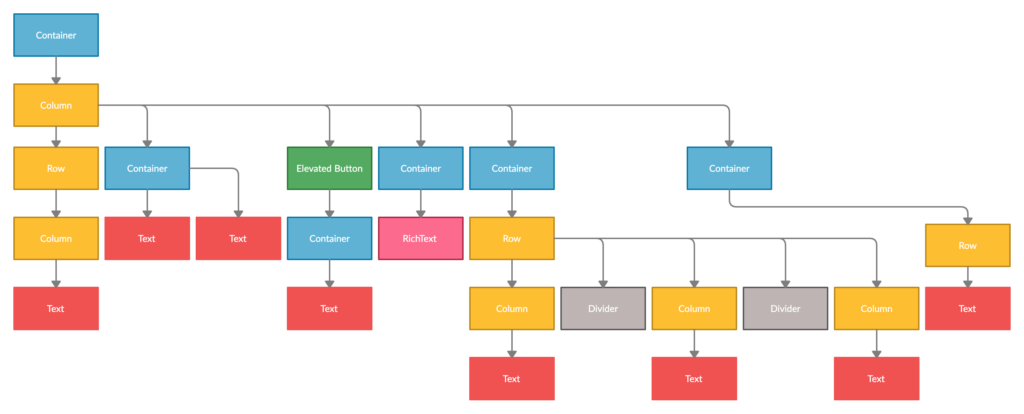
Flutter is predominantly if not exclusively used to write web or mobile applications, both of which have a significant user interface (UI) component to them. Generally speaking, when we make our code available to other researchers at most they will get a README file that will explain the setup and quirks of your code. Even if you include extensive documentation writing a UI is a very different problem. We will not go into how to approach the design of your application as design tools and user-centric design would be courses in of themselves. Instead, we will just focus on the tools already in Flutter that are used to build a UI. As with just about everything in Flutter you build your UI out of widgets. Some of them will have a visual component associated with them such as icons or text but others are strictly used to define the placement or alignment. The former we will refer to as visual widgets the latter as layout widgets. Examples for layout widgets include containers, columns, and rows. All layout widgets will take at least one child (Center, Container) or multiple children (Row, Column.....etc.) who inherit the properties defined in their parent. By nesting layout and visual widgets, you can form complex widget trees. In the example below, we show you the simplified widget tree of the CREDO detector page layout (excluding app and navigation bars). You will notice we used quite a few containers. In the real code, these containers have a lot of additional information regarding margins and padding which gets passed to the child widget.

MaterialApps and Scaffolds

Material Apps is a predefined class provided to you by flutter. It wraps together a number of commonly used widgets for easy usages, such as Scaffold and Navigator. Scaffold is particularly useful when building your first app as it provides extra structure and includes pre-made app elements such as app bars and drawers. When first initializing a scaffold it will automatically generate a field for the app bar and the body of your page. While Material Apps are very helpful they are not a necessity. It is completely possible and sometimes preferable to work without them.

Advanced concepts

This chapter focuses mostly on the concept of Futures.

Lesson 5

Pages and Routing

Odds are that you will want to build an app consisting out of more than just one screen. You can update the states of pages and change their appearance/ display however in many instances you will want user interaction to trigger the rendering a whole new page. There are several straightforward ways of adding extra pages and navigation to your app like using push and pop or creating named routes. Exactly which one you end up suing will depend on your preferences and what it is you are building.  

Push and Pop

Let's begin with what might be the simplest way to navigate to a new page by using

Lesson 6

Futures

Assets and packages

We will cover how to integrate images or similar files for you to load as assets as well as how to use packages that grant extra functionality.

Lesson 7

Getting more out of Flutter

Exercises

Lesson 8

Exercise 1 - updates to the Demo

Task 1: In the automatically generated flutter demo file add the following feature to be displayed in your app. Hints:
  1. Identify the body of the app
  2. Do you need rows or columns to add your icon and text boxes?
  3. How to set colour values?
    1. link colour values to the clicker?
    2. separate set state for the colour values?

Lesson 9

Exercise 2 - Navigation and Pages

Many apps do consist of just one page that updates as the user interact with it but for larger/more complex applications more pages are a definite must. In Flutter, to move between pages you use a Navigator. In its simplest form Navigator.push() and Navigator.pop() let you move between two pages seamlessly. For the sake of legibility, if you have several pages, we recommend using named routes as demonstrated in this Flutter Cookbook. Exercise: Generate a simple multi-page app to navigate through. It should include:
  • at least 6 different pages
  • more than one option to navigate to from at least 3 pages
  • some dead-end pages that don't lead anywhere but back
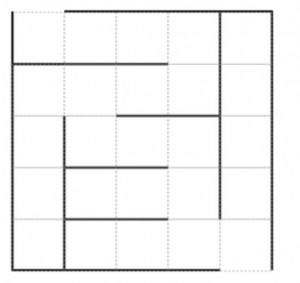
We prepared a maze layout for this for you to work on (i.e each square is a page) and generate a walk-through. However, you are welcome to use a different idea you may have for this project. A simple maze for the excercise

Lesson 10

Exercise 3 - Auto generate widgets

Imagine you are trying to build an FAQ page in Flutter. You can make individual list objects with the questions and answers. However, updating and maintaining a page like this can become cumbersome and unwieldy very quickly. Not to mention the amounts of duplicate code you may have to type. A better idea would be to store both the questions and answers in a separate file and have a function to generates a widget for each question and answer pair to be displayed on your page.   Excercise: Generate an FAQ page that takes its entries from a separately saved .json file and generate/display a widget for each entry. Hints: This article details more or less exactly what is described in the exercise. Try solving it yourself before consulting it though.